

Most people do not have a productivity problem. They have a subscription problem disguised as productivity. A $12 notes app, a $10 task manager, a $15 writing tool, a $9 focus blocker, a $12 file utility, and a $20 automation platform can quietly turn into $900+ per year before you feel the pain. The smarter move is to build a lean productivity stack around one-time purchases, lifetime licenses, and durable free tools that do not punish you every month for staying organized.
This guide shows you how to assemble a complete workflow for notes, tasks, files, writing, automation, time tracking, and focus using practical tools with one-time or lifetime pricing. Prices change, and lifetime deals can disappear quickly, so treat the numbers below as current ballparks and always verify before buying.
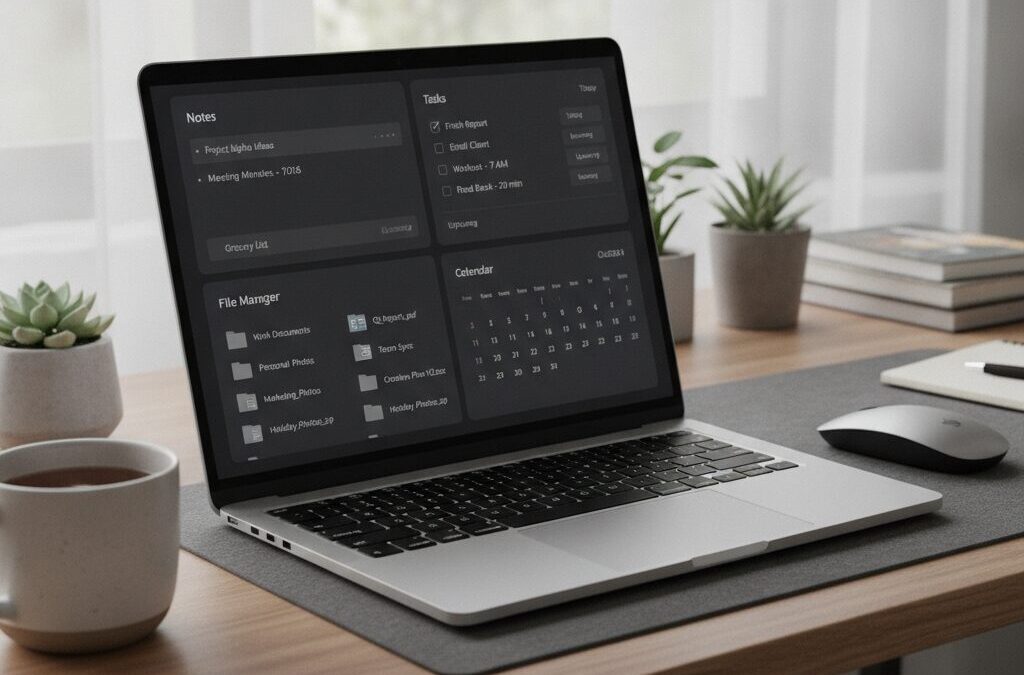
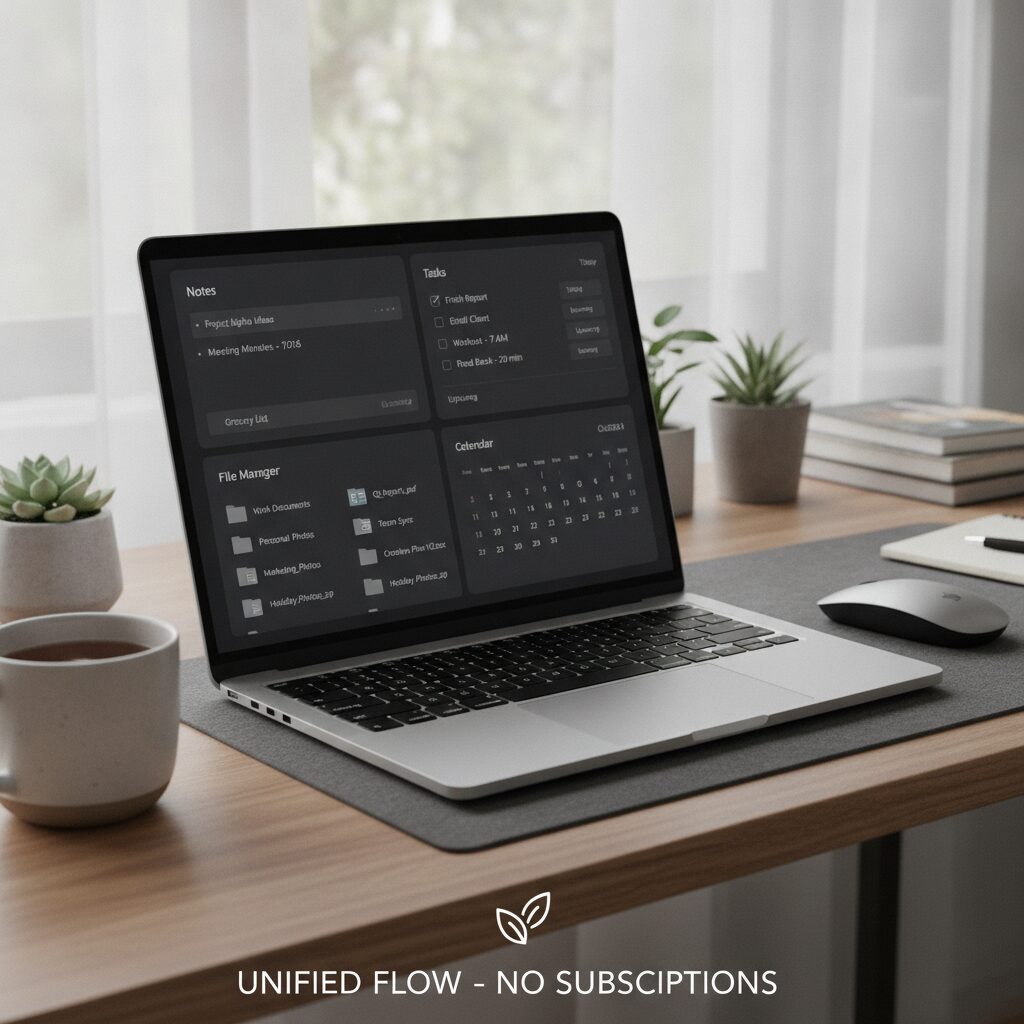
Image placement 1: A clean desk setup showing a laptop dashboard with notes, tasks, calendar, and file manager open side by side.
The Subscription Trap: Why Your Productivity Stack Feels Cheap Until It Is Not
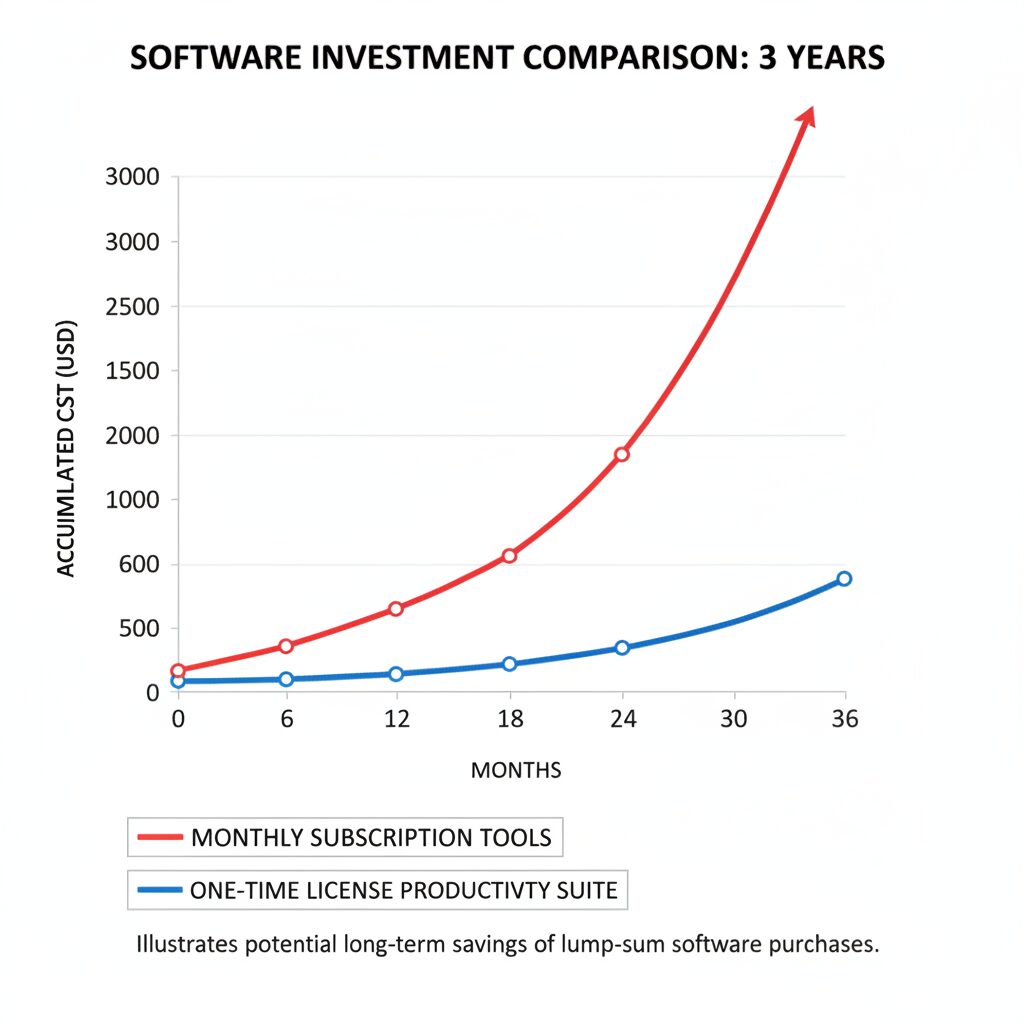
Subscription tools feel painless because the entry price is low. But the math is brutal. Five apps at $10 per month equals $600 per year. Over three years, that is $1,800, often for software you use the same way every day. By contrast, a carefully chosen lifetime stack might cost $180 to $350 upfront and remain useful for years.
The goal is not to avoid every subscription. Cloud storage, team collaboration, and advanced AI features often justify recurring fees. But for your personal productivity operating system, many categories are mature enough that a one-time license is more than enough.
The One-Time-Pay Productivity Stack Blueprint
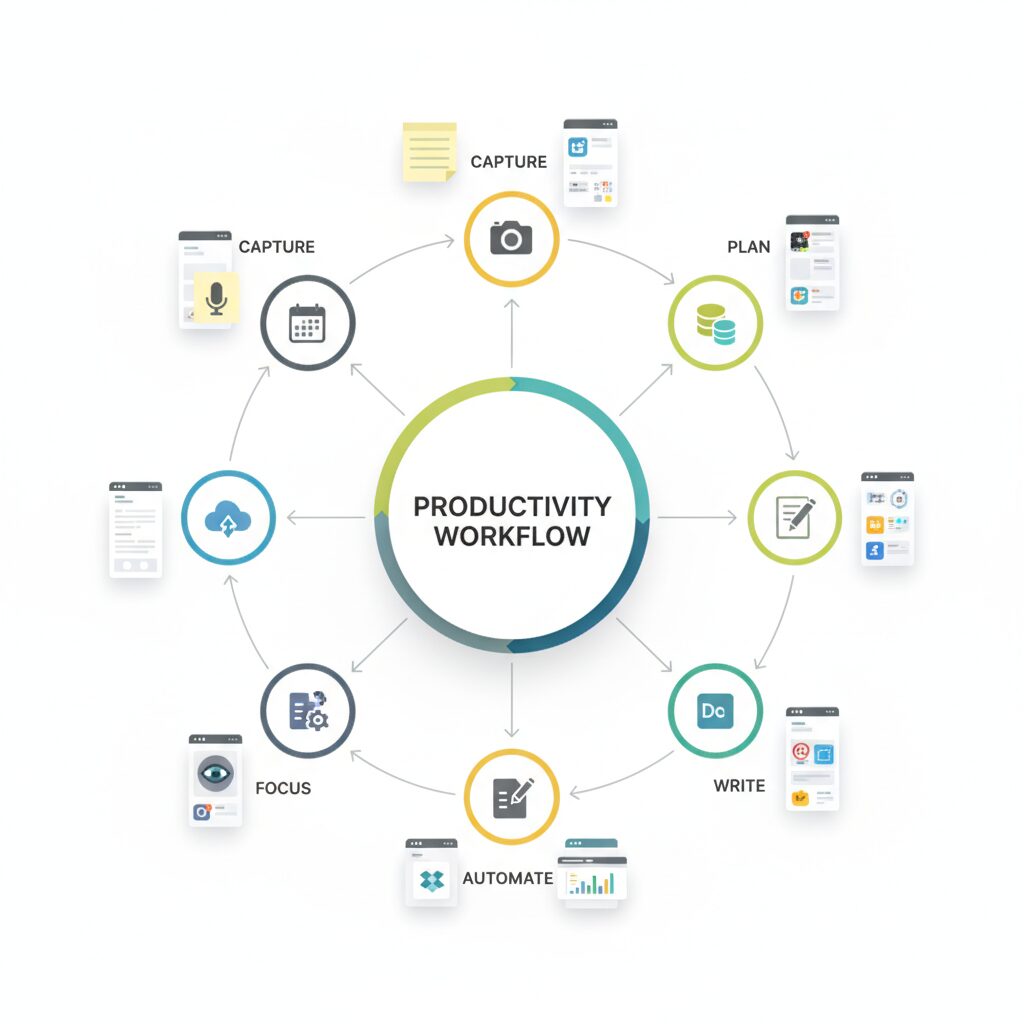
Think of your system as seven connected layers: capture, plan, store, write, automate, measure, and protect attention. If each layer is covered, you do not need a dozen overlapping apps. You need a small number of reliable tools that integrate with your habits.
1. Notes and Knowledge: UpNote or Obsidian
Best paid lifetime option: UpNote. UpNote is one of the strongest values in personal knowledge management, with a lifetime license often priced around $39.99. It works on Windows, macOS, iOS, Android, and Linux, supports notebooks, tags, backlinks, attachments, and offline access. It is easier than Notion and less technical than Obsidian.
Best free-power-user option: Obsidian. Obsidian is free for personal use and stores notes as local Markdown files. If you do not need paid Obsidian Sync, it can be a zero-subscription knowledge base. Add community plugins for Kanban boards, daily notes, templates, and spaced repetition.
Recommendation: Choose UpNote if you want polished simplicity. Choose Obsidian if file ownership, plugins, and long-term portability matter most.
2. Tasks and Projects: Things 3, 2Do, or MyLifeOrganized
Task apps are where subscriptions multiply fast. Todoist and TickTick are excellent, but recurring plans can add up. For Apple users, Things 3 remains a premium one-time purchase: about $49.99 on Mac, $19.99 on iPad, and $9.99 on iPhone. It is elegant, fast, and ideal for personal planning.
If you want deeper controls, 2Do is a powerful alternative with one-time app pricing on Apple platforms, often around $49.99 for Mac and lower on iOS. For Windows-heavy users, MyLifeOrganized offers advanced outlining, dependencies, and project hierarchy, with licenses commonly starting around $59.95 depending on platform and edition.
Setup tip: Create only four task lists: Today, This Week, Waiting For, and Backlog. Most people fail because they build a task museum instead of a decision system.
3. Files and Digital Clutter: OneCommander or Directory Opus
Your file manager is the productivity app nobody talks about. If you waste 10 minutes a day finding downloads, renaming files, and moving folders, that is more than 40 hours a year.
On Windows, OneCommander Pro is a clean modern file manager with a lifetime license often around $29.99. It offers dual-pane browsing, columns, file previews, and better navigation than basic File Explorer. For advanced users, Directory Opus is the heavyweight option, with licenses often around AUD $89 and up. It is not cheap, but it can replace multiple utilities for batch renaming, searching, FTP, metadata, and file automation.
Recommendation: Use OneCommander if you want an immediate upgrade. Choose Directory Opus if you manage thousands of files, creative assets, client folders, or archives.
Image placement 2: Screenshot-style visual of a productivity workflow map connecting notes, tasks, files, writing, automation, and focus tools.
4. Writing and Deep Work: Scrivener, Typora, or iA Writer
For long-form writing, Scrivener is still one of the best one-time-purchase tools. It is commonly around $59.99 for macOS or Windows, with a lower-cost iOS version around $23.99. It is ideal for books, research-heavy articles, documentation, scripts, and complex projects.
If you write in Markdown, Typora is a minimalist editor with a one-time license around $14.99. It is fast, beautiful, and excellent for blog drafts, documentation, and meeting notes. iA Writer is another polished option, typically sold as a one-time app purchase depending on platform.
Workflow: Capture ideas in UpNote or Obsidian, outline in your task app, draft in Typora or Scrivener, then export to Google Docs, WordPress, or your CMS only at the final stage. This keeps your writing environment distraction-free.
5. Automation: Keyboard Maestro, BetterTouchTool, AutoHotkey, or MacroDroid
Automation is where a one-time investment pays back fastest. On macOS, Keyboard Maestro costs about $36 and can automate text snippets, app launching, window management, clipboard actions, and complex macros. Many power users consider it essential because it saves minutes every day.
BetterTouchTool is another Mac favorite, often priced around $10 for a standard license or about $22 for a longer lifetime-style license. It lets you customize trackpad gestures, keyboard shortcuts, window snapping, and workflow triggers.
On Windows, AutoHotkey is free and extremely powerful. You can create text expansions, remap keys, launch apps, and build custom shortcuts. On Android, MacroDroid Pro is usually a low-cost one-time upgrade, often under $10, and can automate location-based actions, notifications, device settings, and app routines.
Immediate win: Create shortcuts for your email address, meeting link, invoice note, calendar booking link, and standard client replies. That single change can save hours per month.
6. Time Tracking: ManicTime or ActivityWatch
You cannot improve what you never measure. ManicTime tracks computer activity automatically and offers one-time license options, commonly around $67 for personal use depending on edition and promotions. It shows which apps, documents, and websites consumed your day. Unlike manual timers, it does not depend on perfect discipline.
If you want a free open-source route, ActivityWatch tracks app and website usage locally. It is not as polished as paid tools, but it is excellent for privacy-conscious users.
Weekly habit: Review your top 10 sites and apps every Friday. If social media, news, or admin tools are stealing your best hours, adjust your focus blocker before Monday.
7. Focus Protection: Cold Turkey Blocker or Freedom Alternatives
Cold Turkey Blocker Pro is one of the most respected one-time-purchase focus tools, often around $29 to $39 depending on currency and promotion. It can block websites, apps, games, and even the entire internet on schedules. The strength is its seriousness: once a locked block starts, bypassing it is intentionally difficult.
Use it for two daily focus windows: 9:00-11:00 and 2:00-3:30. Block social media, video sites, shopping, news, and any app that turns a quick check into a 45-minute detour. This is not about willpower. It is about designing your environment so the right choice is easier.
A Practical Starter Stack Under $250
Here is a realistic setup for a solo professional, student, creator, or freelancer who wants power without recurring costs:
Notes: UpNote Lifetime, about $39.99
Tasks: Things 3 for Apple users, about $49.99 on Mac; or MyLifeOrganized for Windows, around $59.95
Files: OneCommander Pro, about $29.99
Writing: Typora, about $14.99; upgrade to Scrivener at about $59.99 if you write long-form
Automation: Keyboard Maestro at about $36 on Mac, BetterTouchTool at about $22, or AutoHotkey free on Windows
Time tracking: ActivityWatch free or ManicTime around $67
Focus: Cold Turkey Blocker Pro, about $29-$39
Total: roughly $175 to $285 depending on platform and choices. That is less than many subscription stacks cost in three months.
Buying Rules Before You Click Any Lifetime Deal
Rule 1: Check the export options
A lifetime license is only valuable if your data is not trapped. Favor apps that export Markdown, CSV, PDF, HTML, OPML, or plain files.
Rule 2: Avoid abandoned software
Look for recent updates, active support, a public changelog, and current operating system compatibility. A cheap lifetime deal from a dead product is not a bargain.
Rule 3: Buy for your real workflow, not your fantasy workflow
If you do not currently manage complex projects, do not buy the most complex task manager. If you write short emails, you may not need Scrivener. The best stack is the one you will actually open tomorrow.
Rule 4: Watch seasonal windows
Black Friday, Cyber Monday, back-to-school season, and launch promotions often produce the best one-time pricing. Lifetime licenses are often scarce by design, and when a product shifts to subscription, the old deal may never return. If a tool is proven, actively maintained, and fits your workflow, waiting forever can cost more than buying.
Image placement 3: A comparison chart showing annual subscription costs versus one-time license costs over three years.
Your 60-Minute Setup Plan
Minute 0-10: Pick your notes app and create three notebooks: Inbox, Projects, and Reference.
Minute 10-20: Pick your task app and add only today’s real commitments. Do not import years of old chaos.
Minute 20-30: Create a folder structure with five top-level folders: Work, Personal, Finance, Learning, Archive.
Minute 30-40: Add five automation shortcuts for repeated text and app launching.
Minute 40-50: Install time tracking and let it run silently. Do not optimize yet; collect data first.
Minute 50-60: Schedule two Cold Turkey focus blocks for tomorrow and block your top distractions.
Final Take: Own the System, Do Not Rent the Habit
The best productivity stack is not the one with the flashiest AI demo or the biggest template gallery. It is the one that captures your ideas, clarifies your next actions, protects your attention, and keeps working without draining your bank account every month.
If your current tools cost more than $50 per month, audit them today. Cancel one overlapping subscription, replace it with a lifetime or one-time-license alternative, and put the savings toward a tool you will use for years. Start with notes, tasks, and focus protection first. Those three layers create the biggest immediate return.
Call to action: Choose one app from each category above, build your starter stack this week, and set a reminder 30 days from now to review how much time and money you have saved. The sooner you stop renting your workflow, the sooner your tools start working for you instead of billing you.

Unlock Full Article
Watch a quick video to get instant access.

Social Media