

If you have decided it is time to move your passwords out of LastPass, the worst move is to rush the export, download a plain-text CSV, and leave it sitting in your Downloads folder. The second-worst move is doing nothing because migration feels intimidating. A password vault contains the keys to your bank, email, cloud storage, tax records, social accounts, and work apps. Treat the move like changing the locks on your digital house.
The good news: you can switch safely in about an hour if you follow the right order. This guide walks you through choosing a stronger replacement, exporting from LastPass, importing into your new vault, rotating your highest-risk passwords, enabling multi-factor authentication, and deleting leftovers. Prices below are typical public prices and may change, but they give you a useful anchor before you choose.
Before You Export: Pick the Right New Vault First
Do not export your LastPass data until your replacement account is created and ready. LastPass exports are commonly CSV files, which means your passwords may temporarily exist as readable text. The shorter that window, the better.

Best secure replacements to consider
1Password is the polished premium choice for families, teams, and anyone who wants excellent apps. Individual plans are commonly around $2.99/month billed annually, and Families plans around $4.99/month billed annually. It uses a Secret Key plus your account password, which adds protection if your master password is weak or reused. Best for: people who want the smoothest experience and are willing to pay a few dollars monthly.
Bitwarden is the value leader. It has a generous free plan, a Premium plan around $10/year, and a Families plan around $40/year. It is open source, supports passkeys, hardware security keys, and self-hosting for advanced users. Best for: budget-conscious users, developers, and privacy-focused households.
Dashlane is a user-friendly option with built-in dark web monitoring and easy password health tools. Premium pricing often starts around $4.99/month billed annually, while Friends & Family plans may be higher. Best for: people who want security nudges, monitoring, and a simple dashboard.
Keeper is strong for business-grade controls and families who want encrypted file storage. Personal plans are often around $34.99/year, and Family plans around $74.99/year. Best for: users who want granular sharing and security reporting.
Proton Pass is compelling if you already use Proton Mail or Proton VPN. Proton Pass Plus is often promoted around $1.99/month billed annually, with email aliases included. Best for: privacy-first users who want masked email addresses alongside passwords.
NordPass is often discounted heavily, with Premium promotions sometimes around $1.50-$2.00/month. Best for: users who want a modern interface and a low entry price, especially if they already use NordVPN.
The Fast Decision: Which One Should You Choose?
If you want the safest default recommendation for most non-technical users, choose 1Password. If you want maximum value and open-source transparency, choose Bitwarden Premium. If your priority is privacy tools like email aliases, choose Proton Pass. If you manage passwords for a family and need easy sharing, compare 1Password Families, Bitwarden Families, and Keeper Family.
Here is the price anchor that matters: a $10-per-year Bitwarden Premium plan is cheaper than one coffee per month, while 1Password costs roughly the price of a streaming subscription. Compare that to the potential cost of one compromised email account that resets everything else. The expensive option is usually not the password manager; it is waiting too long to secure your logins.
Step-by-Step: Move Out of LastPass Without Leaving Passwords Exposed
Step 1: Update your devices first
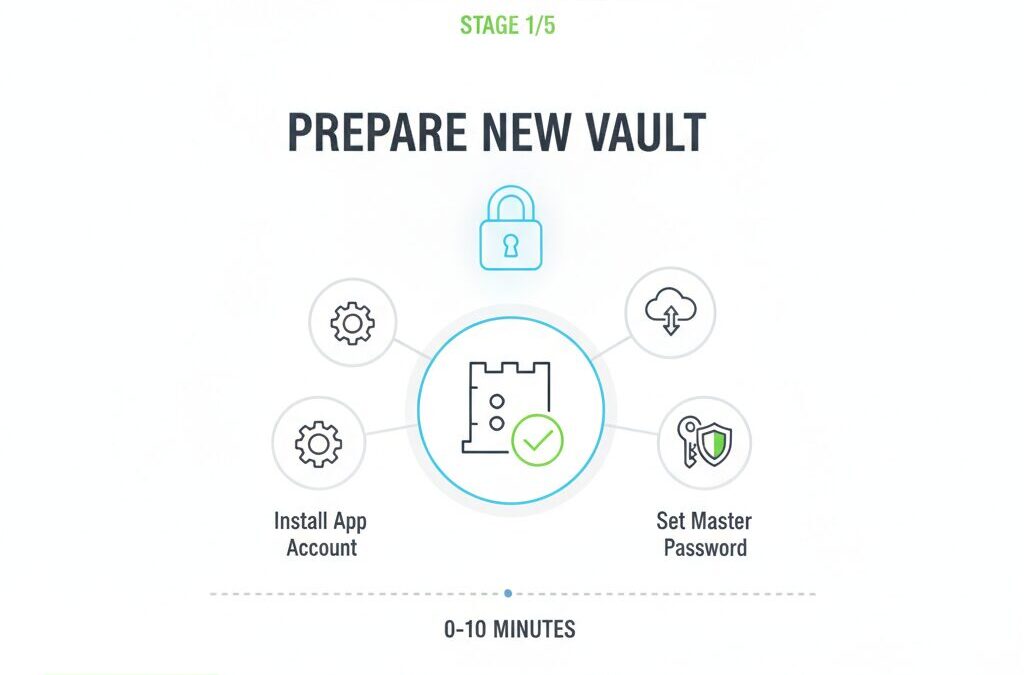
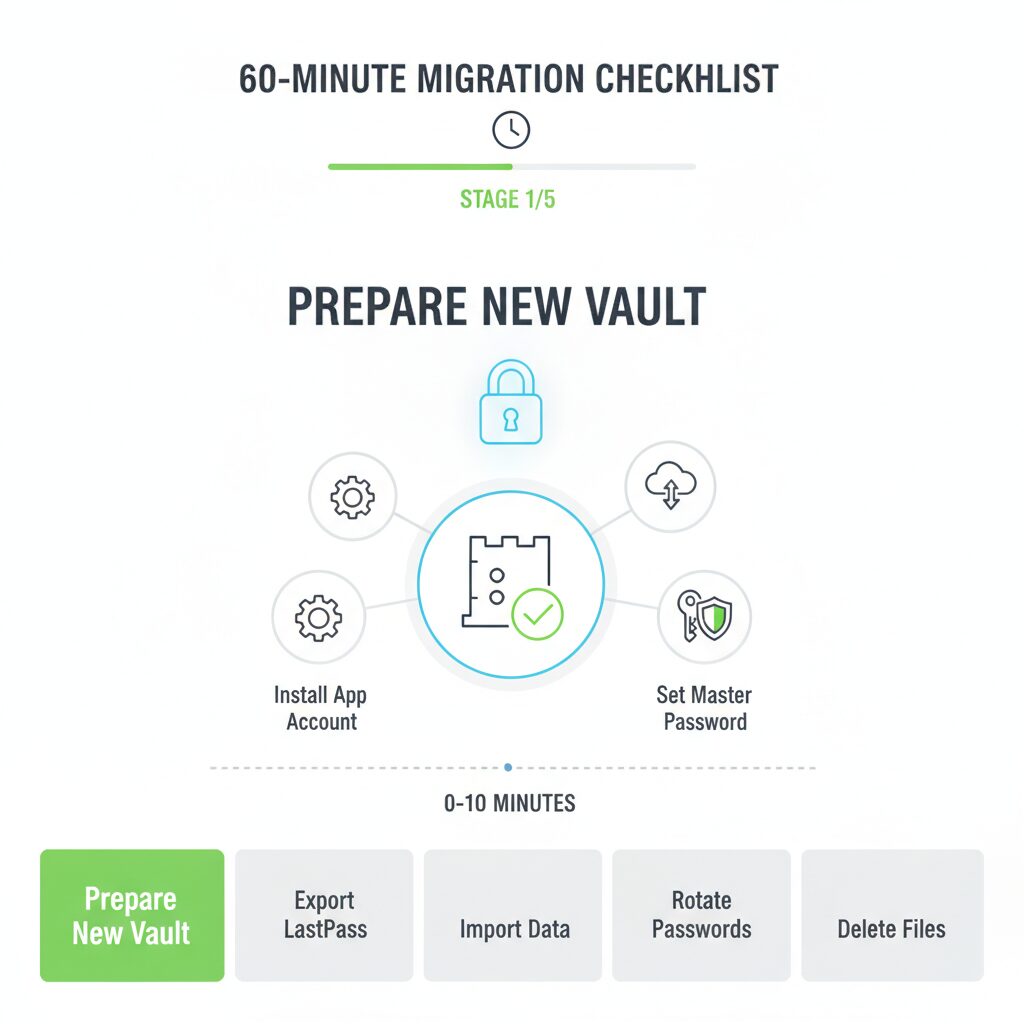
Before exporting, update your browser, operating system, and LastPass extension. Also install the app or browser extension for your new password manager. Sign in, create a strong master password, and save your recovery kit or emergency access instructions immediately. For 1Password, print or securely store your Emergency Kit. For Bitwarden, save your recovery code after enabling two-step login.
Step 2: Create your new vault and enable MFA immediately
Do not wait until after import to enable multi-factor authentication. Turn it on before your passwords arrive. The best option is a hardware security key such as a YubiKey 5 NFC, typically around $50, or a YubiKey Security Key NFC, often around $25. If you are not ready for a hardware key, use an authenticator app like 2FAS, Aegis, Microsoft Authenticator, or Google Authenticator. Avoid SMS codes when better options are available.
Step 3: Export from LastPass
In LastPass, go to your vault, open Advanced Options, and choose Export. You may need to re-enter your master password. LastPass will typically generate a CSV file or display your data in a browser window to copy. This file can include URLs, usernames, passwords, and notes in readable form. Name it something temporary like migration.csv, not all-my-passwords.csv. Keep it on your local device only; do not upload it to Google Drive, Dropbox, Slack, email, or a shared folder.
Step 4: Import into the new manager
Open your new password manager and use its import tool. 1Password, Bitwarden, Dashlane, Keeper, NordPass, and Proton Pass all provide import workflows for LastPass CSV files. After import, check that logins, secure notes, folders, and shared items transferred correctly. Expect some cleanup: duplicate entries, old URLs, and blank fields are common. Do not delete the CSV until you have confirmed that key accounts are present.
Step 5: Delete the export file securely
Once import is verified, delete the CSV immediately. Empty your Trash or Recycle Bin. Check Downloads, Desktop, browser temporary folders, and cloud-sync folders. If you copied the export text into a document, delete that too. On shared computers, stop and reconsider the entire migration; ideally, do this only on a personal device you control.
The Password Rotation Priority List
You do not need to change every password in one frantic afternoon. But you should rotate the accounts that can unlock everything else. Start with these in order:
1. Primary email accounts: Gmail, Outlook, iCloud, Proton Mail, Yahoo. Your email can reset passwords for almost everything. Change the password, enable MFA, review recovery email and phone, and check forwarding rules.
2. Financial accounts: banks, credit cards, PayPal, Venmo, Cash App, investment accounts, crypto exchanges, tax software. Use unique passwords and app-based or hardware-key MFA where supported.
3. Apple ID, Google Account, and Microsoft Account: these control devices, backups, photos, documents, and app stores. Review active sessions and remove old devices.

4. Cloud storage: Dropbox, Google Drive, OneDrive, iCloud Drive, Box. These often contain sensitive documents like passports, contracts, and tax forms.
5. Work and admin accounts: Microsoft 365, Google Workspace, AWS, GitHub, Shopify, WordPress, payroll systems, domain registrars. If you run a business, these should be changed before entertainment or shopping passwords.
6. Social media: Facebook, Instagram, X, TikTok, LinkedIn, Reddit. Enable login alerts and remove suspicious connected apps.
Migration Checklist You Can Follow Today
Choose your new manager: 1Password for premium ease, Bitwarden for best value, Proton Pass for privacy bundles, Keeper for family/business sharing, Dashlane for guided security monitoring.
Create a strong master password: Use a memorable passphrase with at least four unrelated words, numbers, and punctuation. Example format: River-Quartz-Planet-47-Mango!. Do not reuse your old LastPass master password.
Enable MFA: Prefer YubiKey or authenticator apps. Save recovery codes offline.
Export LastPass: Download CSV only when ready to import. Keep it local.
Import immediately: Use the built-in importer in your new password manager.
Verify important entries: Check email, banking, Apple/Google/Microsoft, work tools, and cloud storage.
Delete the CSV: Empty Trash and check sync folders.
Rotate critical passwords: Start with email, finance, identity, cloud, and admin accounts.
Audit MFA: Replace SMS where possible. Remove old trusted devices.
Close or empty LastPass: After you are confident the move is complete, delete sensitive vault data or close the account according to LastPass account settings. Also uninstall old browser extensions to avoid accidentally saving new passwords there.
Common Mistakes That Put Your New Vault at Risk
The biggest mistake is leaving the export file behind. The second is importing into a new manager but continuing to reuse old passwords. The third is protecting the new vault with a weak master password and no MFA. A premium password manager cannot save you if someone can guess the one password that unlocks it.
Another overlooked risk is browser password storage. After you migrate, open Chrome, Safari, Edge, or Firefox settings and remove duplicate saved passwords if you do not plan to use the browser as your main manager. Otherwise, you may have two vaults with different security controls and outdated entries.
Final Recommendation: Make the Move Before You Need It
If you are already thinking about leaving LastPass, do not let the decision linger for months. Pick a replacement today, set up MFA, and migrate while you can do it calmly. For most readers, the best two starting points are 1Password if you want the most polished experience or Bitwarden Premium if you want serious security at an almost unbeatable price.
Your password manager is not just an app; it is the front door to your digital life. Spend the next 60 minutes moving carefully, deleting the exposed export file, and rotating your highest-value passwords. Future you will be grateful you did it before a breach alert, lost phone, or suspicious login forces the issue.

Call to action: Choose your new vault now, enable MFA before importing, and use the checklist above to complete your migration today. Do not leave your most valuable accounts waiting in an old vault you no longer trust.

Unlock Full Article
Watch a quick video to get instant access.

Social Media